Let's try to use Swift Concurrency to handle navigation in UIKit
Introduction
Over the last few years we have seen great changes in the way we handle asynchronous code with Swift Concurrency. In 2021 it was introduced in Swift 5.5. In 2024 Swift 6.0 improved and enforced compilation checks. More recently in 2025, a new approachable mode was introduced to simplify its use in existing projects. The fact that it was back-ported up to iOS 13.0 was a huge deal, and allowed us to start using this new paradigm faster than usual for new features like that.
The network stack was a perfect candidate to start introducing async / await in our code base as it used completion based APIs. But as we increase our usage of Swift Concurrency in our app (from Network to Business logic), we usually stop right before the UI, where the UI is creating Tasks to run our asynchronous code.
In this article we will see how we can use Swift Concurrency to handle UIKit navigation logic, how it can improve the readability, but we will also explore the complexity and challenges it brings.
Concept
Let’s start simple with an alert, in UIKit we present a UIAlertController to show an alert, and we
are informed of the selected action with the UIAlertAction’s closure handler.
Here is what it looks like:
class MyViewController {
    // ...
    func askUserForValue() {
        let alertController = UIAlertController(title: "Choose a value", message: nil, preferredStyle: .alert)
        alertController.addAction(UIAlertAction(title: "1", style: .default) { _ in
            self.handleAlertSelection(value: "1")
        })
        alertController.addAction(UIAlertAction(title: "2", style: .default) { _ in
            self.handleAlertSelection(value: "2")
        })
        alertController.addAction(UIAlertAction(title: "Cancel", style: .cancel) { _ in
            self.handleAlertSelection(value: nil)
        })
        present(alertController, animated: true)
    }

    private func handleAlertSelection(value: String?) {
        print("Selection: \(value)")
        // Do something with user selection
    }
}
This works, but we can see that the handling of the selection is outside the initial function.
Let’s look at how we can transform this completion based alert to use Swift Concurrency:
- First we use
withCheckedContinuation(isolation:function:_:)to bridge the completion to an async code:class MyViewController: UIViewController { // ... func buttonAction() async { let alertController = UIAlertController(title: "Choose a value", message: nil, preferredStyle: .alert) let selection: String? = await withCheckedContinuation { continuation in alertController.addAction(UIAlertAction(title: "1", style: .default) { _ in continuation.resume(returning: "1") }) alertController.addAction(UIAlertAction(title: "2", style: .default) { _ in continuation.resume(returning: "2") }) alertController.addAction(UIAlertAction(title: "Cancel", style: .cancel) { _ in continuation.resume(returning: nil) }) present(alertController, animated: true) } print("Selection: \(selection)") // Do something with user selection } } - Then we can create a utility method to simplify the creation of the alert:
extension UIViewController { func presentAsyncAlert<T: Sendable>( title: String, message: String?, preferredStyle: UIAlertController.Style, actions: [(title: String, style: UIAlertAction.Style, value: T?)] ) async -> T? { let alertController = UIAlertController( title: title, message: message, preferredStyle: preferredStyle ) return await withCheckedContinuation { continuation in for action in actions { let action = UIAlertAction(title: action.title, style: action.style) { _ in continuation.resume(returning: action.value) } alertController.addAction(action) } present(alertController, animated: true) } } } - And finally we can simplify our call site:
class MyViewController {
  // ...
  func buttonAction() async {
      let selection: String? = await presentAsyncAlert(
          title: "Choose a value",
          message: nil,
          preferredStyle: .alert,
          actions: [
              (title: "1", style: .default, value: "1"),
              (title: "2", style: .default, value: "2"),
              (title: "Cancel", style: .cancel, value: nil)
          ]
      )
      print("Selection: \(selection)")
      // Do something with user selection
  }
}
With this async version of the code we can already see the similarities with async network calls. Instead of having to deal with callbacks, we can focus on the logic and reading of the function line by line instead of jumping to multiple function.
Using the same methodology let’s see what we can obtain for a more complex (and realistic) situation, after that we will see what we need to have in mind with this kind of bridging.
Using the concept on something useful
With this new async API for displaying alert, it is now easy to do something like a quiz. Handling selected actions for each alert and chaining multiple alerts becomes trivial. As we can control alerts from an asynchronous context, it is also really easy to perform network calls, like used in this example to validate answers.
class MyViewController: UIViewController {
    // ...
    func startQuiz() async {
        let answer1: Int = await presentAsyncAlert(
            title: "Question 1",
            message: "Which keyword do you use to declare constants in Swift ?",
            preferredStyle: .alert,
            actions: [
                (title: "var", style: .default, value: 1),
                (title: "val", style: .default, value: 2),
                (title: "let", style: .default, value: 3),
                (title: "const", style: .default, value: 4)
            ]
        )
        let answer2: Int = await presentAsyncAlert(
            title: "Question 2",
            message: "What size in bits is using Int in Swift ?",
            preferredStyle: .alert,
            actions: [
                (title: "16", style: .default, value: 1),
                (title: "32", style: .default, value: 2),
                (title: "64", style: .default, value: 3),
                (title: "128", style: .default, value: 4)
            ]
        )
        let answer3: Int = await presentAsyncAlert(
            title: "Question 3",
            message: "Which keyword does not exist in Swift ?",
            preferredStyle: .alert,
            actions: [
                (title: "break", style: .default, value: 1),
                (title: "continue", style: .default, value: 2),
                (title: "goto", style: .default, value: 3),
                (title: "return", style: .default, value: 4)
            ]
        )
        var request = URLRequest(url: URL(string: "http://127.0.0.1/answer")!)
        request.httpMethod = "POST"
        request.httpBody = "answers=\(answer1),\(answer2),\(answer3)".data(using: .utf8)
        do {
            let (data, _) = try await URLSession.shared.data(for: request)
            _ = await presentAsyncAlert(
                title: "Your score",
                message: String(data: data, encoding: .utf8),
                preferredStyle: .alert,
                actions: [
                    (title: "ok", style: .default, value: 1)
                ]
            )
        } catch {
            _ = await presentAsyncAlert(
                title: "Error",
                message: error.localizedDescription,
                preferredStyle: .alert,
                actions: [
                    (title: "ok", style: .default, value: 1)
                ]
            )
        }
    }
}
Playground with this example available here.
By using the same method we used to handle presentation of alerts in an async way: we can also handle the navigation to any kind of views. We could imagine having this kind of order preparation code, that collects all required information in a concise and readable way:
func prepareOrder(for products: [Product]) async throws -> PreparedOrder {
    let userAccount: UserAccount
    if let account = getLoggedInAccount() {
        userAccount = account
    } else {
        userAccount = try await presentLogInForm()
    }
    try await validateProductStockNetworkCall(for: products)
    let shippingAddress: Address
    if let address = userAccount.shippingAddress {
        shippingAddress = address
    } else {
        shippingAddress = try await presentShippingAddressForm()
    }
    let paymentMethod: PaymentMethod
    if let payment = userAccount.paymentMethod {
        paymentMethod = payment
    } else {
        paymentMethod = try await presentPaymentMethodForm()
    }
    return PreparedOrder(
        userAccount: userAccount,
        products: products,
        shippingAddress: shippingAddress,
        paymentMethod: paymentMethod
    )
}
Problems and issues with handling navigation this way
In the previous examples we have seen that handling navigation with async methods can make the code very easy to follow. But before going too far, let’s see what issues we have with the current simple approach.
Requirements from withCheckedContinuation
withCheckedContinuation has a very important requirement in its documentation:
You must invoke the continuation’s resume method exactly once.
Failing to satisfy it has consequences also described in the documentation:
Failing to invoke it (eventually) will cause the calling task to remain suspended indefinitely which will result in the task “hanging” as well as being leaked with no possibility to destroy it.
In the alert example, having a programmatic dismissal of the alert will fail this requirement, as the continuation was only resumed after the user selected an action. Doing so will show this warning in the console:
SWIFT TASK CONTINUATION MISUSE: presentAsyncAlert() leaked its continuation without resuming it. This may cause tasks waiting on it to remain suspended forever.
Using deinit to force the continuation to resume
One idea to prevent this hanging continuation is to resume it when the presented view controller is deinit. But this is more complex to do with Swift Concurrency because it is very easy to retain values in Task contexts.
Imagine we have a SamplePickerViewController we want to present over ContentViewController, here a simple implementation causing that creates a retain cycle.
Here we have a custom view controller that lets the user pick some value, like we could have done with an alert. With the deinit resuming the continuation to prevent continuation misuse.
class SamplePickerViewController: UIViewController {
    var continuation: CheckedContinuation<Int?, Never>? // 5

    deinit {
        // This does not work due to a retain cycle
        continuation?.resume(returning: nil)
    }

    private func handleSelection(_ value: Int?) {
        continuation?.resume(returning: value)
        continuation = nil
    }

    // Some more code to handle UI and buttons that calls `handleSelection(_:)`
}

class ContentViewController: UIViewController {
    // This implementation cause a retain cycle between the SamplePickerViewController and the Swift continuation
    func chooseValueFromSimplePicker() {
        Task { // 1
            let viewController = SamplePickerViewController() // 2
            let value = await withCheckedContinuation { continuation in // 3
                viewController.continuation = continuation // 4
                present(viewController, animated: true)
            }
            dismiss(animated: true) {
                print("Do something with value:", value)
            }
        }
    }
}
With this simple implementation, it is as simple as dismissing the sheet modal from a gesture to reveal a retain cycle. We can see it in the memory graph:
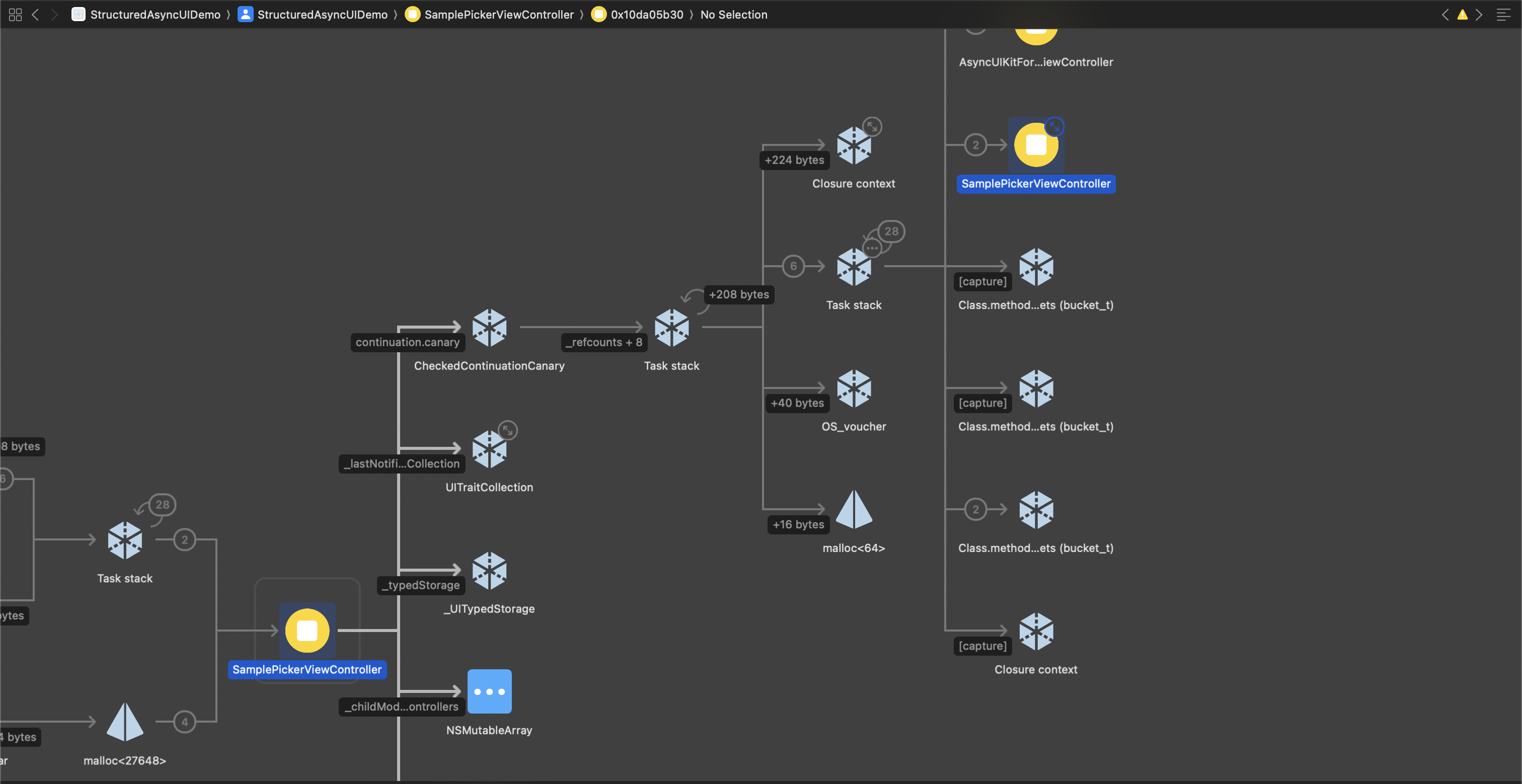
Here what is happening:
- A Task context is created (1)
- An instance of SamplePickerViewController is created inside the task context (2), the task context retains it in memory
- A continuation is created to pause the current Task execution (3)
- The continuation is stored in the view controller (4)
This created this retain cycle in memory:
- SamplePickerViewController.continuation retains the continuation (5)
- The continuation retains the task context (3)
- The task context retains the view controller (2), which complete the cycle
Here a solution using a forced unwrap to remove the SamplePickerViewController reference from the Task context:
class ContentViewController: UIViewController {
    func improvedImplementationNotCausingRetainCycle() {
        Task {
            var viewController: SamplePickerViewController! = SamplePickerViewController() // this let is now a var
            let value = await withCheckedContinuation { continuation in
                viewController.continuation = continuation
                present(viewController, animated: true)
                viewController = nil // We release the value to prevent a retain cycle
            }
            // We only want to dismiss if we are still presenting the view controller
            if presentedViewController != nil {
                dismiss(animated: true) {
                    print("Do something with value:", value)
                }
            } else {
                print("Do something with value:", value)
            }
        }
    }
}
Preventing retain cycle with use of Task and withCheckedContinuation is possible, by manually handling
reference retains in the asynchronous context. However, this approach is complex and error-prone, let’s see
another simpler way to ensure proper usage of withCheckedContinuation.
Swift Concurrency cancellation model to the rescue
We have seen that enforcing that continuation is always resumed is hard. One way to prevent those problems
is to use the Task Cancellation mechanism and force the asynchronous operation to throw with a CancellationError.
Handling the cancellation ensures that when a view disappears from the screen we cancel all pending operation, and prevent any Task from being stuck permanently.
To participate in the cancellation we need to use the method withTaskCancellationHandler(operation:onCancel:).
The onCancel closure parameter is called when the task is cancelled, allowing us to resume the
continuation in a cancelled state.
Handling the cancellation with the alert presentation can be implemented with:
extension UIViewController {
    func presentAsyncAlertWithCancellationHandling<T>(
        title: String,
        message: String?,
        preferredStyle: UIAlertController.Style,
        actions: [(title: String, style: UIAlertAction.Style, value: T)]
    ) async throws(CancellationError) -> T {
        var cancellationHandler: (@MainActor () -> Void)?
        let result = await withTaskCancellationHandler {
            await withCheckedContinuation { (continuation: CheckedContinuation<Result<T, CancellationError>, Never>) in
                guard !Task.isCancelled, else {
                    continuation.resume(returning: .failure(CancellationError()))
                    return
                }
                let alertController = UIAlertController(
                    title: title,
                    message: message,
                    preferredStyle: preferredStyle
                )
                for action in actions {
                    alertController.addAction(UIAlertAction(title: action.title, style: action.style) { @MainActor() _ in
                        cancellationHandler = nil
                        continuation.resume(returning: .success(action.value))
                    })
                }
                present(alertController, animated: true)
                cancellationHandler = {
                    alertController.presentingViewController?.dismiss(animated: true)
                    continuation.resume(returning: .failure(CancellationError()))
                }
            }
        } onCancel: {
            Task { @MainActor in
                cancellationHandler?()
            }
        }
        return try result.get()
    }
}
And here how we could use it from a view controller, with automatic task cancellation when it disappears from the screen.
class MyViewController: UIViewController {

    private var runningAsyncOperations: Set<Task<Void, Never>> = []

    override func viewDidDisappear(_ animated: Bool) {
        super.viewDidDisappear(animated)
        runningAsyncOperations.forEach { $0.cancel() }
    }

    // MARK: - Private

    private func addAsyncOperation(_ operation: @escaping @MainActor () async -> Void) -> Task<Void, Never> {
        let task = Task(operation: operation)
        runningAsyncOperations.insert(task)
        Task { [weak self] in
            await task.value
            self?.runningAsyncOperations.remove(task)
        }
        return task
    }

    private func showSomeAlert() {
        addAsyncOperation {
            let selection: String? = try await presentAsyncAlertWithCancellationHandling(
                title: "Choose a value",
                message: nil,
                preferredStyle: .alert,
                actions: [
                    (title: "1", style: .default, value: "1"),
                    (title: "2", style: .default, value: "2"),
                    (title: "Cancel", style: .cancel, value: nil)
                ]
            )
            print("Selection: \(selection)")
            // Do something with user selection
        }
    }
}
Conclusion
Trying to use the Swift Concurrency to handle the navigation in an iOS application was an interesting
journey, but with many unexpected traps.
From simple alert handling and the quiz example we have seen that it is really helpful to make understandable code.
But those examples did not handle many edge cases, some programmatic navigation could prevent our task from continuing,
the fact that it is very hard to not retain our view controllers while in Tasks. Those combined risking retain cycles.
And finally some relief with the cancellation mechanism, that could be used to prevent our issues by cancelling our
continuations in viewDidDisappear().
With this article we have seen that Swift Concurrency can be used to make navigation code easy to
follow within a single method, even for multiple screens chained together. This ease of reading comes
at the price of the expectation of CheckedContinuation that require to always be resumed once or
some Task will be forever suspended.
Using async navigation for simple navigation, like alerts or custom modals, can simplify your code while not causing too many issues when properly handling cancellation. Trying to handle more complex navigation, like a multi screen form, seems inappropriate as it increases the chances of misuse of the pattern and risk causing more harm than good.